
Harmy History by patient: how to find projections
Every projection you create in Harmy is saved to the account. With a few patients that seems obvious; with dozens, what decides whether History helps or gets in the way is how you name and search. This page shows how to find a projection quickly and how to organize the history for return visits.
What does History store?
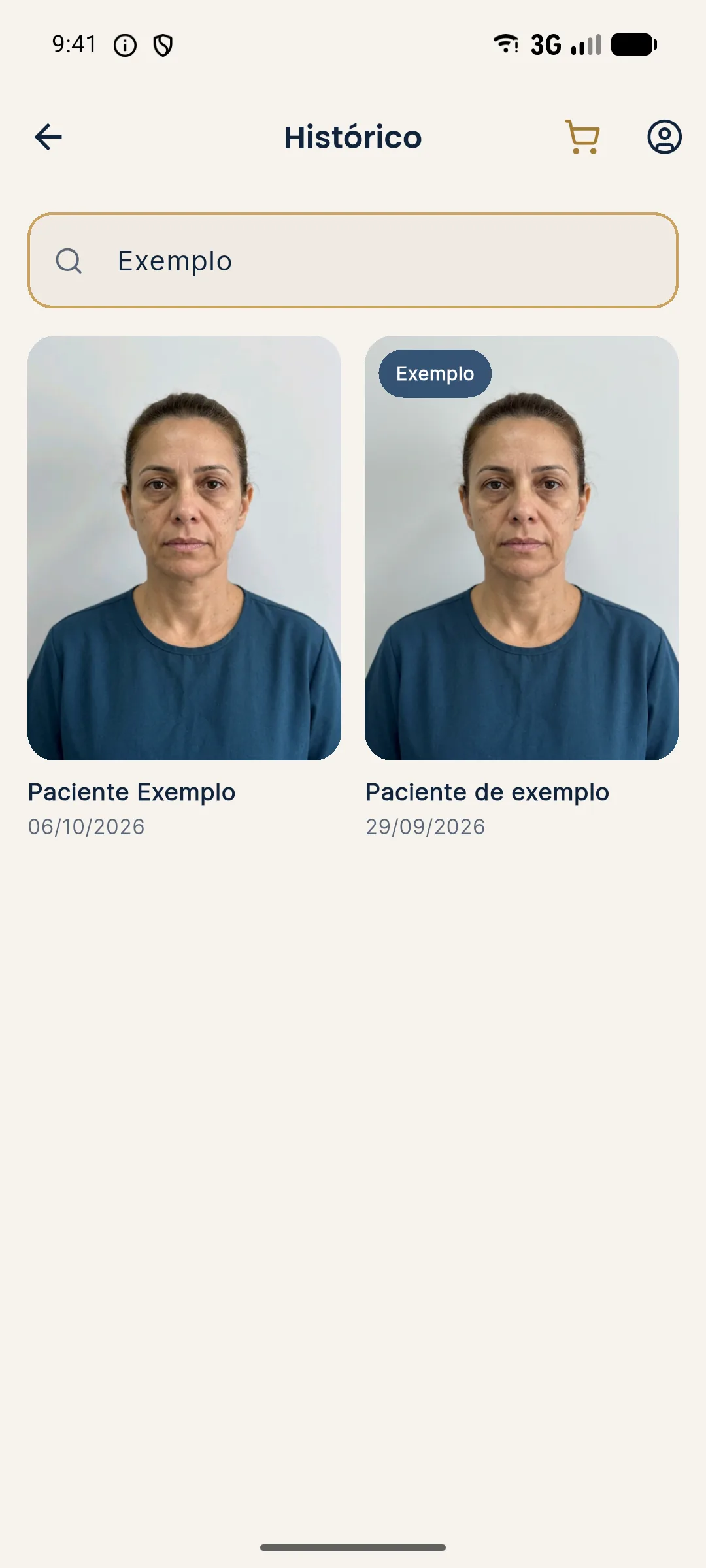
Each card stores the Before photo, the projection, the plan (areas and volumes), the patient's name and the date. From it you reopen the Before / After screen, generate a new quote, share again and add the actual result, without spending a credit. Only creating a new projection uses a credit.
Step by step to find a projection
- On the home screen, tap History.
- Type the patient's name in the search field.
- Tap the card to open the projection on the Before / After screen.
- Use what you need: slider, Show procedures, Share, Quote or Add actual result.
- To correct the name, press and hold the card and use Edit patient name.
How to name so you can find it later
Search works by name. If the same patient shows up as "Ana", "Ana Souza" and "Ana S.", each spelling becomes a card that is hard to find. Set a simple rule and always use the same one.
| Rule | Hypothetical example |
|---|---|
| Full first and last name | Ana Souza |
| No nicknames | Avoid "Annie" |
| No abbreviations | Avoid "A. Souza" |
| Telling namesakes apart | Add the middle initial or the year |
Several projections for the same patient
Each new projection is a new card, with its own date and plan. This lets you keep the initial version of the plan, the adjusted version and the comparison with the actual result. To tell which card is which, look at the date and use Show procedures to see the volumes. To compare what was projected with what happened, see comparing projection and actual result in Harmy.
Privacy and organization
History contains patient photos, which are personal data. Keep the phone protected with a device password or biometrics, do not share the account and do not use History as a showcase. For the rules on using images, see consent and LGPD for photos (LGPD is Brazil's data protection law).
Tips
- Use search before creating a new projection: the patient may already have a session.
- Reopen the projection at the return visit to show the patient the original plan.
- Note the return date in your patient record and add the actual result when they come back.
- See the full tutorial on History and actual result.
Using History at the return visit
History is more useful at the return visit than on day one. When the patient comes back, open the original projection, show the agreed plan and, at the right moment, add the actual result. From then on, the same card holds the before, the projection and the real photo, and you can compare in the three slider modes.
This routine helps you remember what was agreed, avoids redoing the plan and gives the patient a sense of follow-up. Combine it with your calendar of return visits so History is not just an archive but part of the ongoing conversation with each patient.
Frequently asked questions
How do I find a patient's projection in Harmy?
On the home screen, tap History and type the patient's name in the search field. The list filters as you type.
Does reopening an old projection cost a credit?
No. Only creating a new projection uses a credit. Reopening, sharing and generating a quote from History are free.
Can I correct a patient's name later?
Yes. In History, press and hold the card and use Edit patient name.
What does the Sample badge mean in History?
It marks projections made with the app's fictional test person, which let you learn the flow without using a real patient.