
How to Create Your Harmy Account (Email, Google or Apple)

The account is what stores your projection history, your credit balance and your clinic's details. It belongs to the professional, not the patient: each person who sees patients in the office should have their own account. In this tutorial you will see the three ways to sign in to Harmy, what happens on first access and where the account settings are.
What is the account for in Harmy?
Everything you do in the app is tied to the account: each patient's projections, the actual result photos, the quote price table and the clinic's name and logo. If you change phones, just sign in with the same account to recover your history. The credit balance also belongs to the account, and it is the same in the app and in the website's credits area.
Step by step to create the account
- Download Harmy from your phone's store (Google Play on Android or App Store on iPhone) and open the app.
- On the sign-in screen, tap Don't have an account? Sign up.
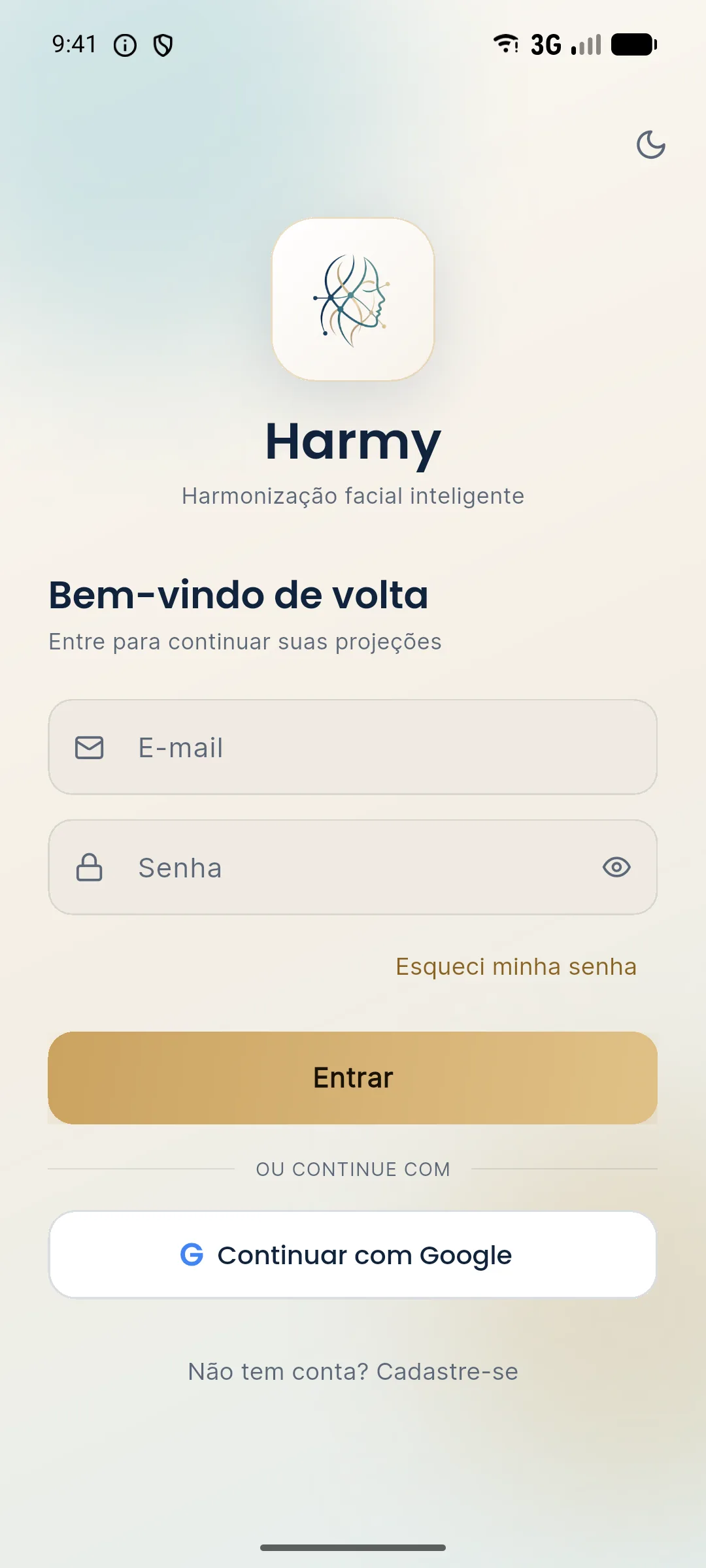
- Choose one of the sign-up methods:
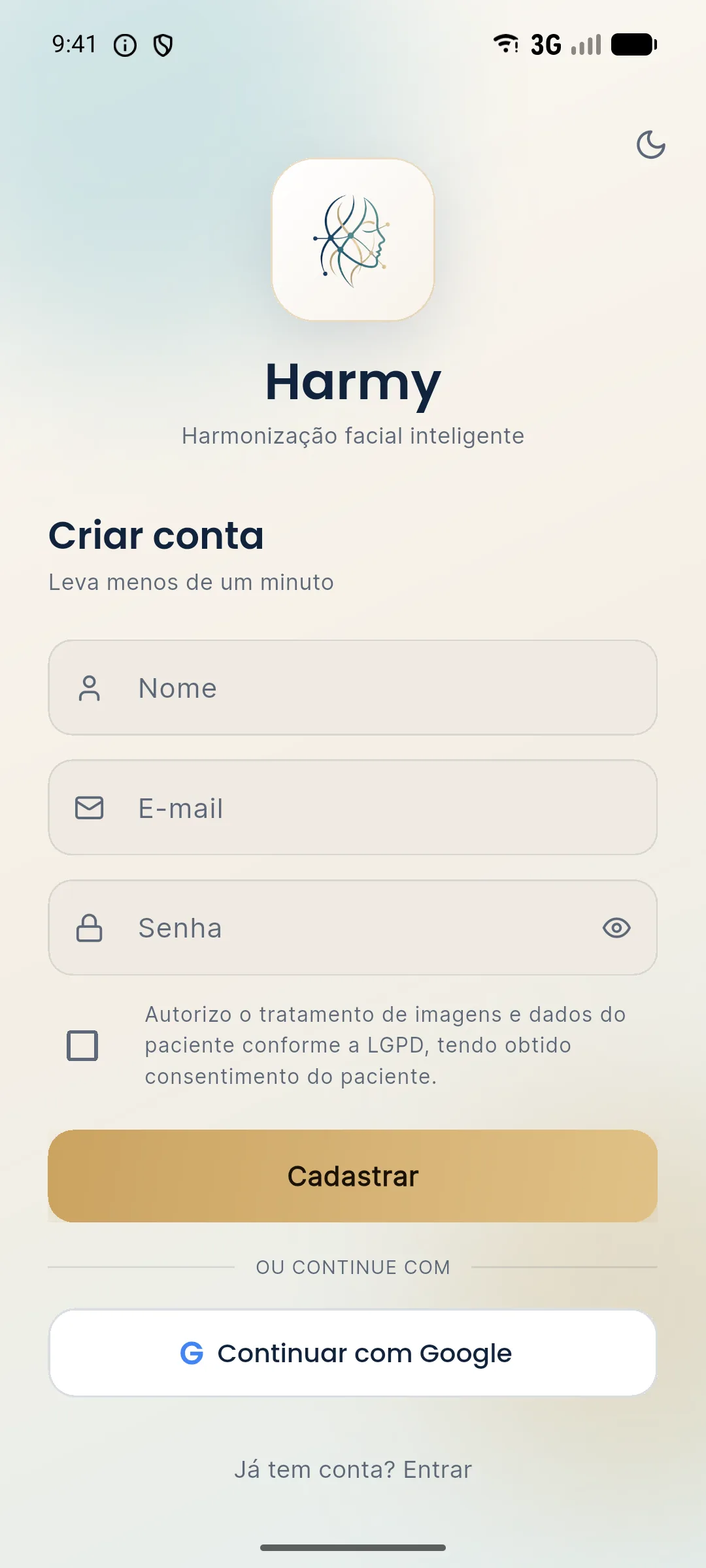
- Email and password: fill in Name, Email and Password, check the box authorizing the processing of patient images and data under LGPD (Brazil's data protection law) and tap Sign up.
- Continue with Google: choose the Google account on the device. If it is your first access, the app shows the consent form (LGPD) for you to accept before creating the account.
- Continue with Apple: the button appears only on iPhone. The flow is the same as Google, with confirmation handled by Apple itself.
- If you used email and password, Harmy sends a 6-digit code to your email. Type the code on the Confirm your email screen and tap Verify. Without this confirmation the account is not activated.
- On first access the Terms of use and privacy screen appears. It explains that face marking happens on the device itself, that the frontal photo is sent to a third-party AI to generate the projection, that the generated image is an illustrative simulation and that you should only use the app with patients who have given permission. Read it and tap Accept and continue.
- Done: you arrive at the home screen, with the New projection and History buttons.
What is in the Account menu?
The profile icon, in the top right corner, opens the Account menu. Next to it is the cart, which leads to the credits screen.
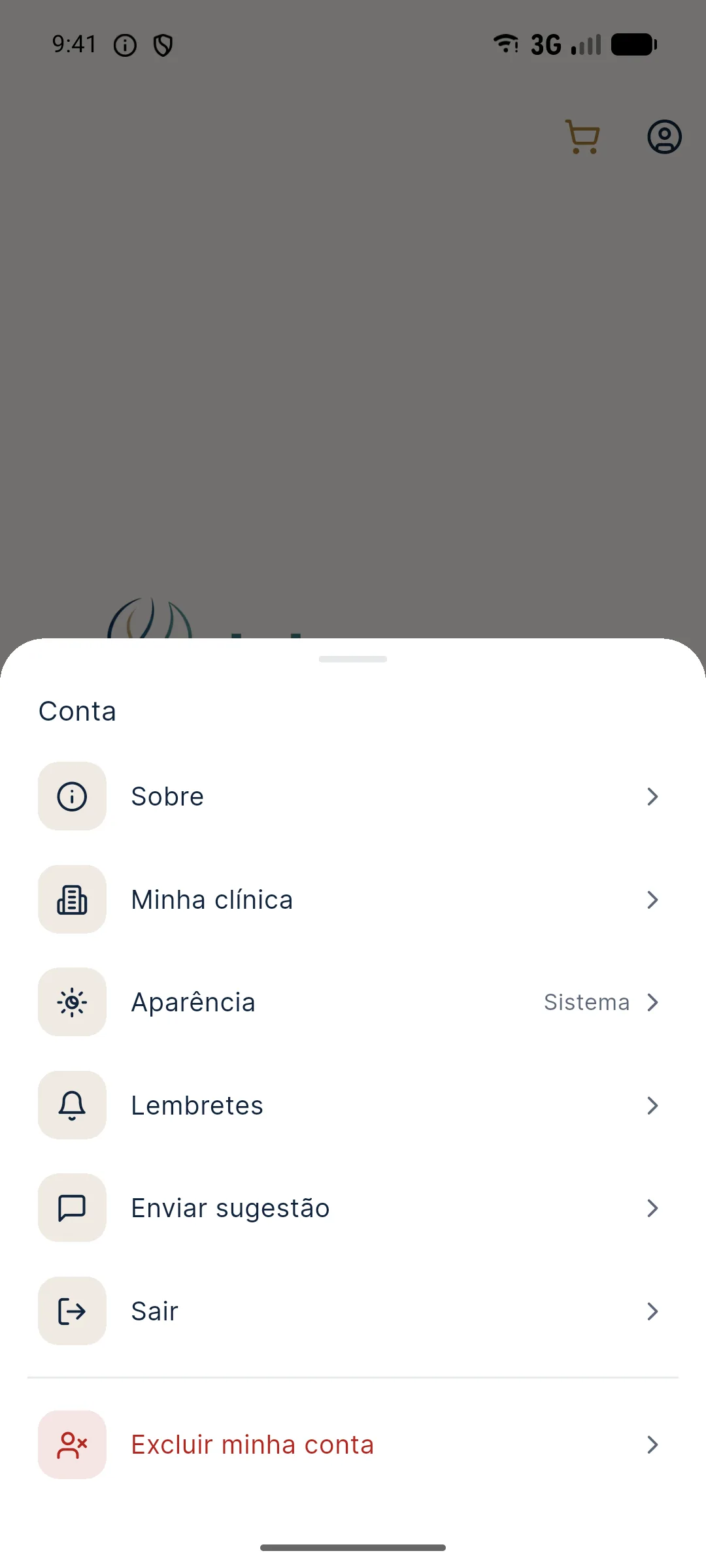
- About: app information and the installed version.
- My clinic: name, contact (WhatsApp or Instagram), logo and price table per ml. These details appear on the shared image and the PDF quote.
- Appearance: System, Light or Dark theme.
- Reminders: turns notices by notification and email on or off.
- Send suggestion: a short text field for sending ideas to the team.
- Sign out: ends the session on this device.
- Delete my account: deletion done inside the app. If the phone has a screen lock, the app asks for fingerprint, face or PIN before confirming.
How do reminders work?
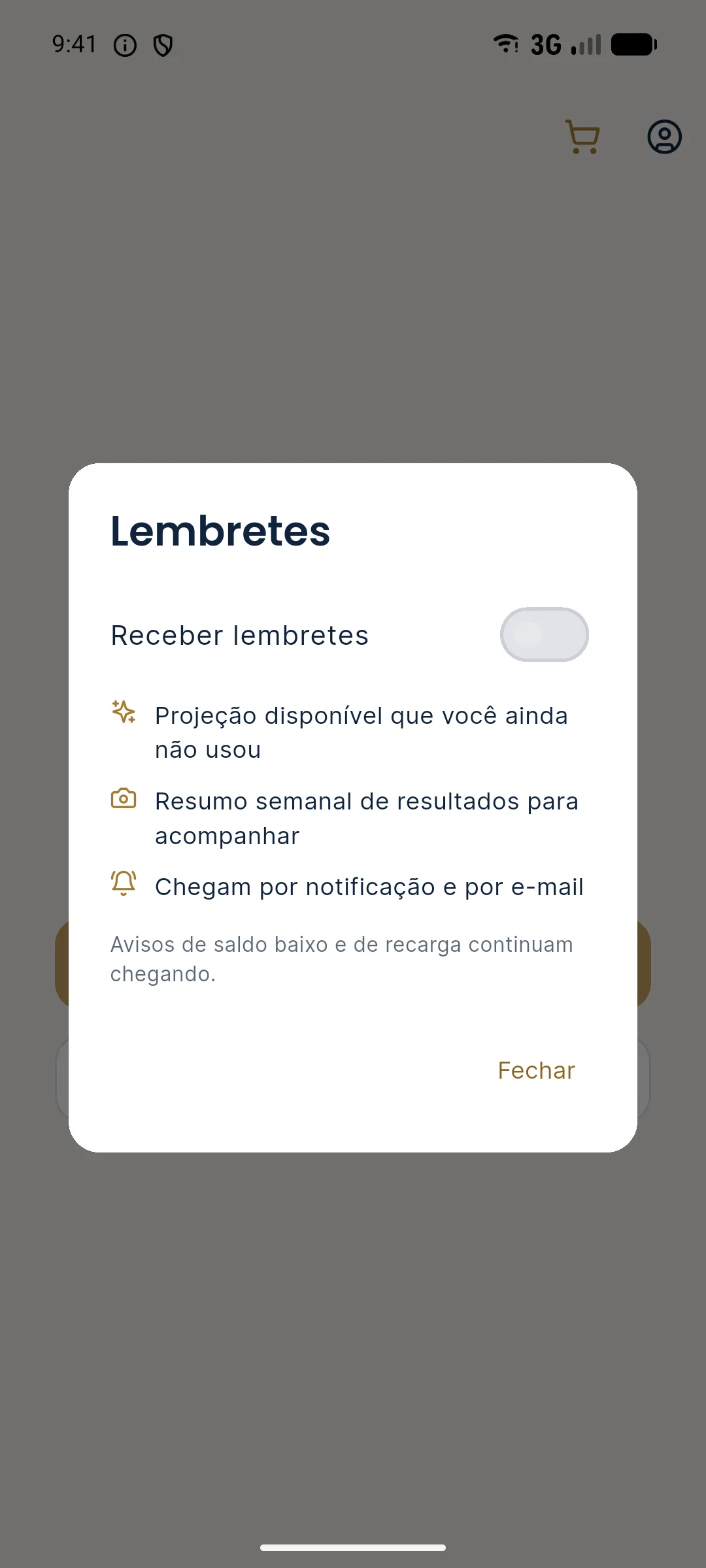
Reminders notify you, for example, when there is a projection available that you haven't used yet. They arrive by notification and email. To turn them off, open Account › Reminders and uncheck Receive reminders. Low balance and top-up notices keep arriving even with reminders turned off.
Tips for a good start
- Use an email you check every day. It receives the verification code and the password recovery code.
- If the clinic has more than one professional, create an account for each one. That way each patient's history stays with whoever saw them.
- Fill in My clinic right at the start. The first image you share will already carry your name and logo.
- The consent checked at sign-up is a declaration of yours. It does not replace the informed consent signed by the patient, which remains the professional's responsibility. See consent and LGPD for photos.
Common errors and how to fix them
| Situation | What to do |
|---|---|
| The code didn't arrive | Check spam and the address you typed. Use the resend code option on the confirmation screen. |
| The app says the consent must be accepted | Check the consent box (LGPD) before tapping Sign up. |
| I forgot my password | On the sign-in screen, tap Forgot password?. You get a code by email and set a new password of at least 8 characters. |
| Sign in with Apple asks for the email again | The app explains the path: Settings › your name › Sign-In & Security › Sign in with Apple, remove Harmy and try again. |
| I can't see the Apple button | It exists only on iPhone. On Android, use email or Google. |
Next step
With the account created, make your first projection. The tutorial how to make a new projection shows the full flow, from the patient's name to the Before / After screen.
Frequently asked questions
Do I have to pay to create a Harmy account?
No. Creating the account is free and there is no monthly fee. A new account gets 1 welcome projection, and after that each projection costs R$ 3.99.
I didn't receive the Harmy verification code. What do I do?
Check your spam folder and the address you typed. On the confirmation screen there is an option to resend the code, which becomes available after a few seconds.
Can I sign in to Harmy with an Apple account on Android?
No. The Continue with Apple button appears only on iPhone. On Android, use email and password or Continue with Google.
How do I turn off Harmy reminders?
Tap the profile icon at the top of the screen, open Account and then Reminders, and turn off the Receive reminders switch. Low balance and top-up notices keep arriving.