
Using a Tablet in the HOF Consultation
Quick facts
- What it is for
- Showing the patient the plan, photos and simulation on a larger screen
- Core rule
- The patient-facing screen shows only what the patient may see
- Main risk
- Notifications and gallery exposed in front of the patient
- In Harmy
- The app is for phones; on a tablet you use the image, the PDF and the patient link
The tablet has entered orofacial harmonization (HOF) practices because it solves a real problem: a phone screen is too small to show a treatment plan to someone sitting next to you. A bigger screen helps explain, compare and keep the patient at the center of the conversation. It also creates new risks, in privacy and in posture, that most professionals only notice after the first scare.
This guide shows what to display, how to prepare the device, how to run the conversation without taking your eyes off the patient and how to handle what the app allows (and does not allow) on each screen. If the question is how to organize the consultation itself, see the first consultation script and the assessment consultation.
What does the tablet solve in the consultation?
It does not improve the consultation by itself. What changes is the ability to show instead of just describing. In HOF, much of the conversation is about proportion, symmetry and volume, and those concepts get clearer with a large image in front of both of you.
| Use | Benefit | Caution |
|---|---|---|
| Standardized photos of the patient themselves | Spot asymmetries and plan together | Only the photo of the patient in the room |
| Plan by area, with ml | Explain what will be done and why | Language with no promise of results |
| Illustrative simulation | Visualize the idea of the plan | Make clear it is an illustration |
| Quote and installments | Transparency on price | Show only what is needed |
| Consent forms and instructions | More comfortable reading | Record and signature according to your workflow |
Without a clear reason, the tablet becomes a barrier: the professional looks at the screen, not at the patient's face. Use it as support, not as a stage set.
The tablet and Harmy: what works
It is important to be clear about what exists. Harmy is an app for phones, Android and iPhone. There is no web version or iPad-optimized version. That does not stop the generated content from appearing on a larger screen; it only changes the route.
For the tablet, the most practical route is the patient link: it opens in the browser of any device, with nothing to install. The shared image and the PDF can be sent to the tablet by email or message. See more in presenting before and after in the consultation.
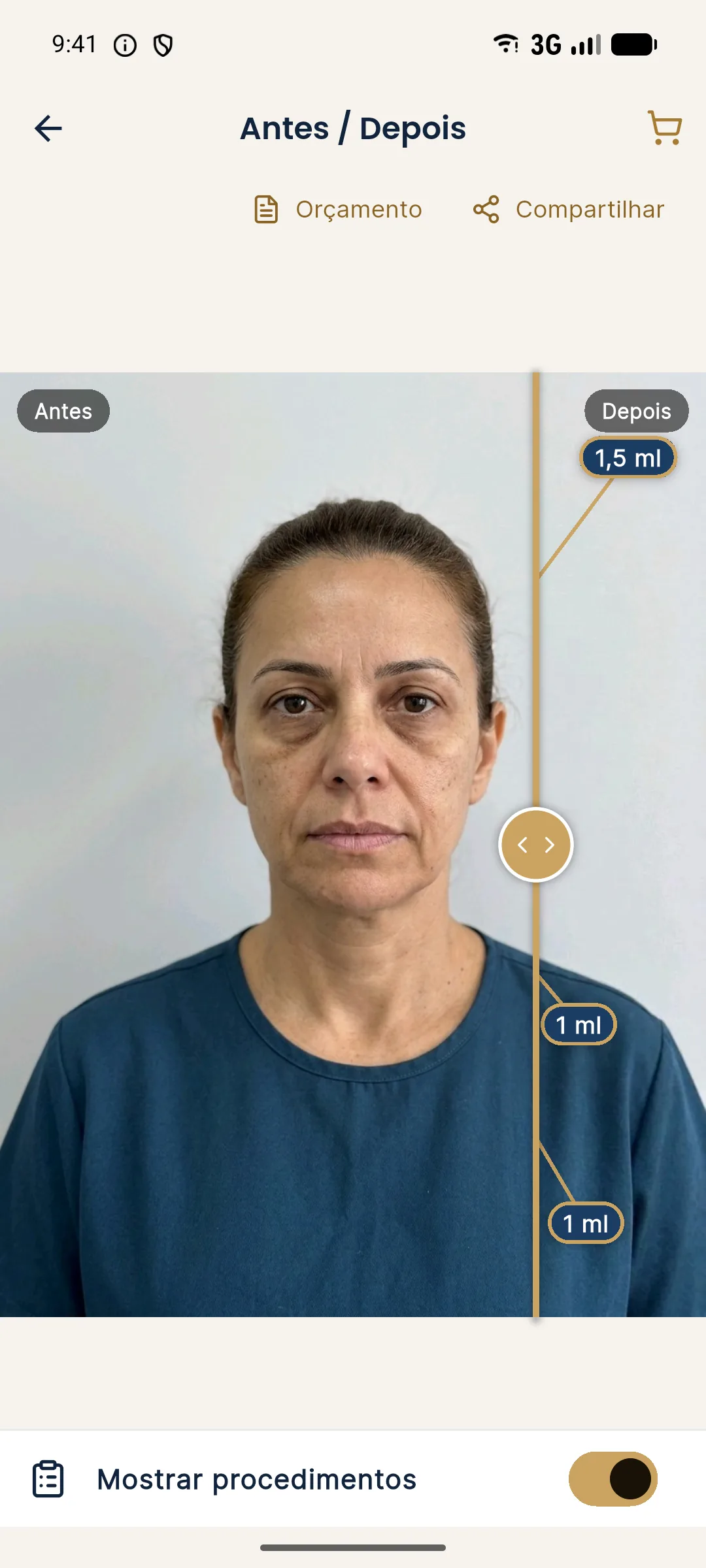
In any format, the illustrative simulation caption must be visible. It keeps the patient from mistaking the projection for a promise. The limits of that conversation are covered in limits of visual simulation in the consultation.
Preparing the device before the first patient
The tablet in the room is seen by many people. Treat it as a clinic computer, not a personal device.
The most critical point is notifications. A message from another patient popping up at the top of the screen in front of the person in the chair is a breach of confidentiality that no consent form covers. Turn on "do not disturb" by default and allow only what is necessary.
Privacy: what the patient must not see
Every piece of data shown on a screen turned toward the patient must belong to that patient. This simple rule prevents most incidents and relies on LGPD in patient records and clinic photos and sending patient photos by WhatsApp and the LGPD.
A good practice is to open only the folder or link for the patient who is in the room, and close it at the end. To show examples to someone who is not yet a patient, use illustrative material, not photos of other people. For this, Harmy has an example patient (a fictional person), useful for practicing the presentation without exposing anyone.
How to run the conversation with the screen
Posture matters as much as the image. The goal is for the patient to speak and decide, not to sit through a presentation.
- Start without the screen. Listen to the patient's concern and goal before showing anything.
- Show their photo, standardized, and ask them to point to what bothers them most. See standardized clinical photography.
- Present the plan by area, stating the ml and the reasoning, without promising the result.
- Only then display the simulation, with the statement that it is an illustration and that the actual result varies.
- Turn the screen toward the patient and let them explore the slider, asking them to say what they notice.
- Close with the quote, on a separate screen, so you do not mix the clinical decision with the price.
For the close, the points in how to increase plan acceptance and patient objections and responses fit in after the simulation.
Ergonomics and setting
Physical details change the mood of the conversation. Two seats side by side work better than one facing the other with the screen in between. The tablet sits at a height where both can see without craning their necks, on a stand that does not wobble. Medium brightness and a clean screen make a difference to the image colors; a room with very strong light behind the patient washes out contrast. The clinic setting covers this in more detail.
Hygiene counts too. If the patient is going to touch the device, wiping the screen between appointments goes into the routine, with a product suitable for the device, and the same care applies to pens and clipboards.
When paper is still better
Not everything needs to go on screen. The informed consent form needs calm reading and a signature; if the clinic uses a digital format, digital signing of consent forms explains what to look for. Post-procedure instructions tend to be more useful printed or sent to the patient in writing, because they consult them at home. The tablet complements paper, it does not replace it in everything.
Quiz: did you prepare the consultation well?
End-of-day routine
The tablet closes the day like the rest of the clinic. Delete temporary files, sign out of open accounts, confirm the lock and put the device to charge in a closed space. If any patient file was saved on the device, move it to the patient record and delete the local copy. This digital hygiene belongs in the end-of-day closing and in the clinic data security.
Frequently asked questions
Does Harmy work on a tablet?
Harmy is an app for Android phones and iPhones and has no web version or iPad-optimized version. On a tablet, the way is to open the image, the PDF or the patient link sent from the phone.
Is it worth using a tablet instead of paper in the consultation?
It can be worth it to show photos, the plan and the simulation more clearly. But consent forms, quotes and aftercare instructions still need to be recorded, according to your workflow and the applicable rules.
Do I need consent to show patient photos on the tablet?
A photo is personal data and part of the care, so its use in the consultation should be covered in the consent form. Showing another patient's photo, even as an example, requires specific consent.
Is it safe to leave the tablet in the room all day?
Only with a screen lock, a clinic-owned account, up-to-date software and no personal accounts. The risk is the device being left open with other patients' data.