
My clinic: logo and branding on sharing and PDF

When you send a projection or a quote to the patient, the material leaves the office and circulates: it goes to WhatsApp, it is shown to family, it comes back at the next visit. The My clinic screen makes sure that material carries your name, your contact and your logo. You fill it in once and Harmy applies it to everything you generate afterward.
What does the My clinic screen store?
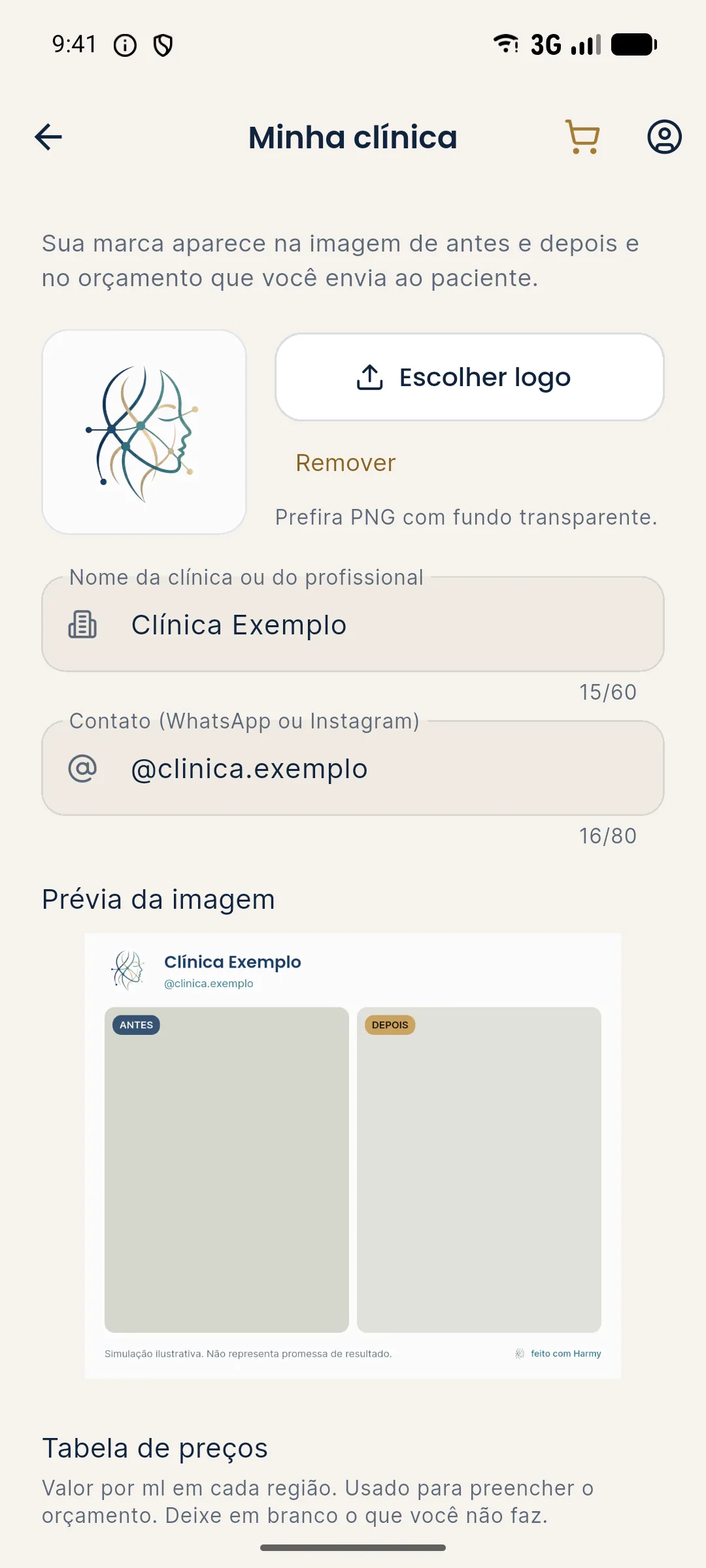
The screen has three blocks:
- Logo: the image of your brand, cropped to a square.
- Clinic or professional name: up to 60 characters.
- Contact (WhatsApp or Instagram): up to 80 characters. It can be the number, the profile @ or both.
Below them is the Price table, with the price per ml for each area, used to fill in the quote. How to use the table is covered in PDF quote.
Step by step
- Tap the profile icon in the top right corner and open My clinic.
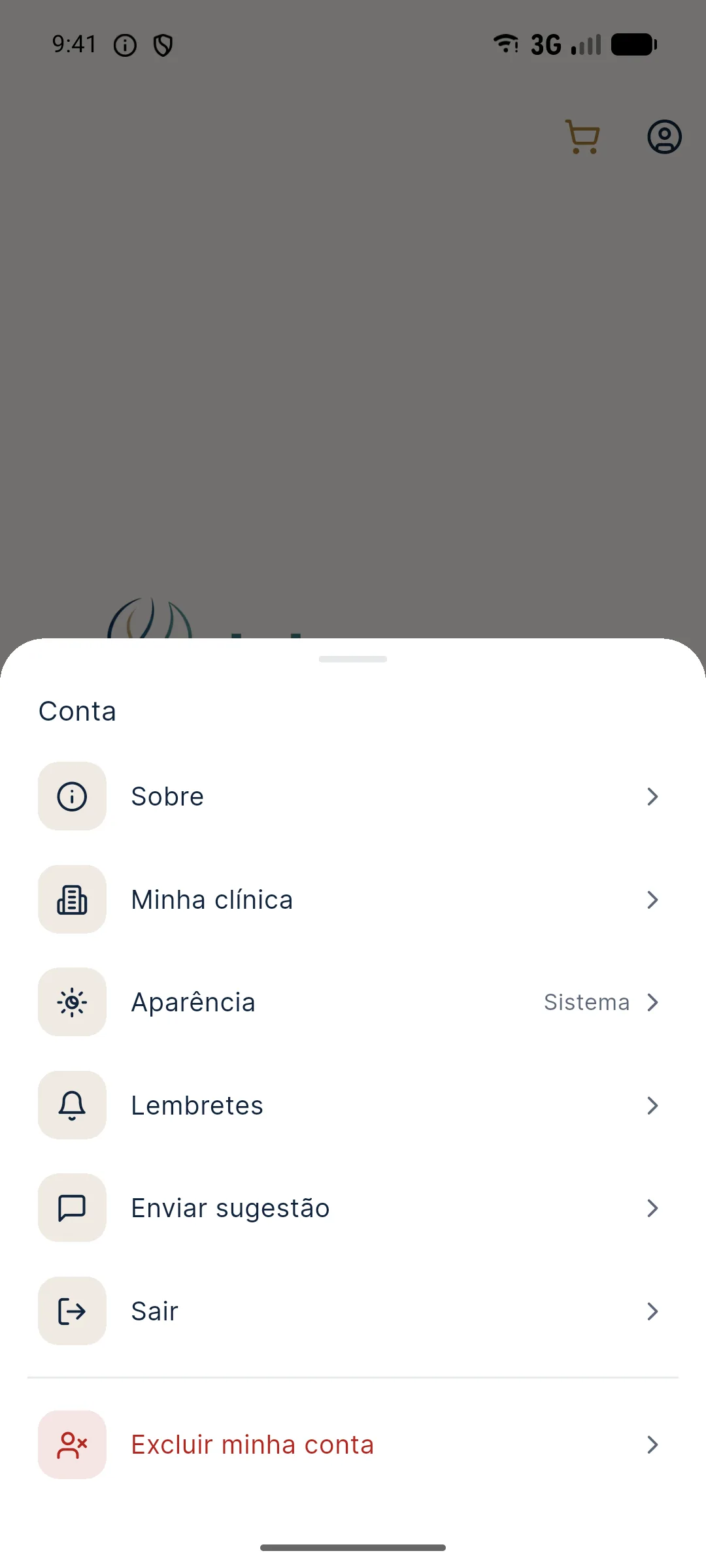
- Tap Choose logo and select the image from your phone gallery.
- The Frame logo screen opens, with a square frame. Drag the image and use two fingers to zoom in or out until the logo sits inside the frame. Double-tap to return to the initial framing.
- Tap Use this logo. The app saves the logo right away and it appears in the box on the left.
- Fill in Clinic or professional name and Contact (WhatsApp or Instagram).
- Check the Image preview, which shows how the header looks on the sharing image.
- If you like, fill in the price table.
- Tap Save. The Data saved message confirms the name, contact and table.
The logo is uploaded when you tap Use this logo. Name, contact and prices are only stored after Save.
Which image should you use as a logo?
The final logo is saved as a square PNG, and the server accepts only PNG up to 2 MB. The app's crop already delivers that format, so you can start from an image in your gallery. A few guidelines:
- Prefer a PNG with a transparent background, as the screen itself recommends. The logo sits on a light background, and a white or colored background around it can show up as a block.
- Use the square version or the brand symbol. Very horizontal logos end up small inside the square frame.
- Leave a small margin when framing. On the crop screen, whatever falls outside the image comes out transparent.
- Avoid small text inside the logo. When sharing, the logo takes up a small part of the header, next to the name.
Where does the brand appear?
| Material | What goes out |
|---|---|
| Sharing image | Header with logo, name and contact, photos labeled Before and After, simulation notice and the made with Harmy seal |
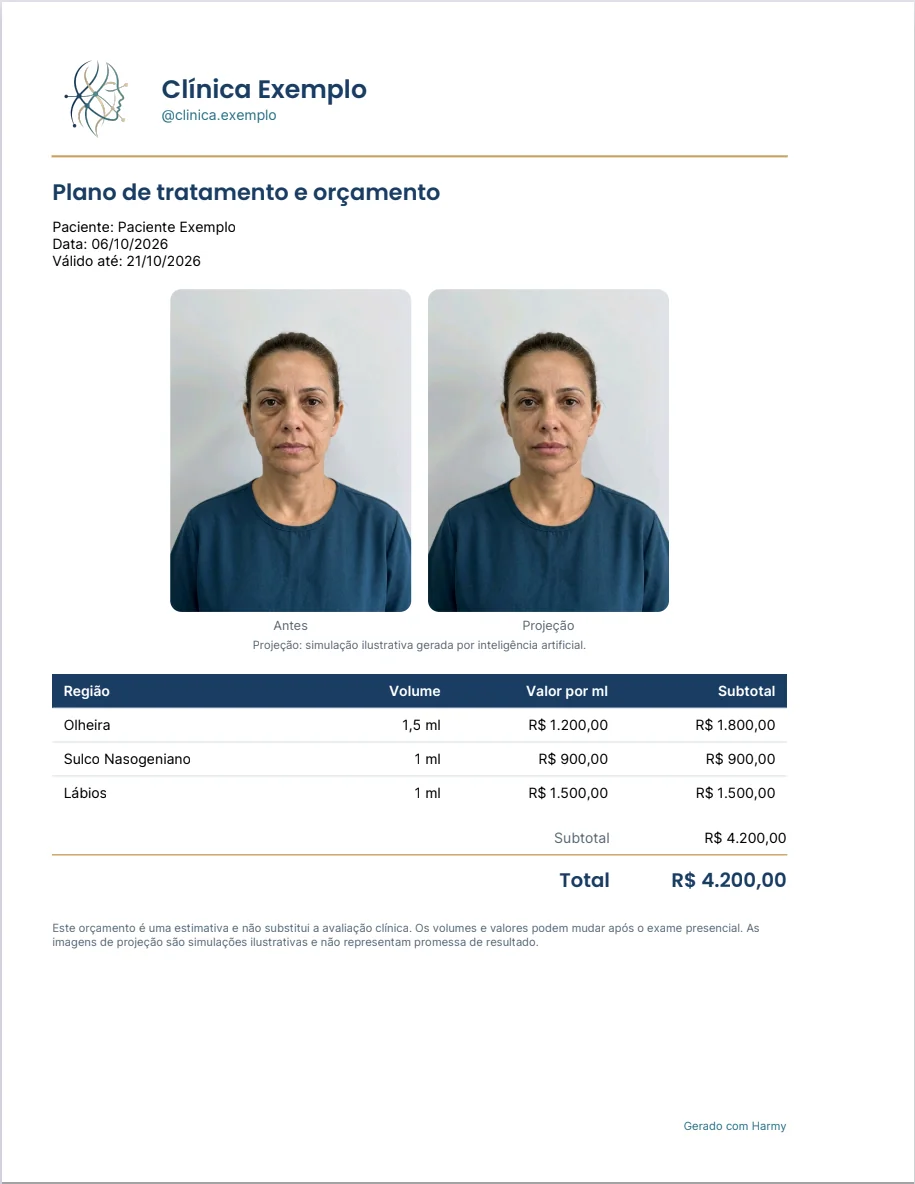
| PDF quote | Logo, name and contact at the top, followed by the plan, the prices and the illustrative simulation notice |
| Message that goes with the image | The text mentions the clinic name; with no name registered, it mentions Harmy |
If nothing is registered, the image goes out with no header, but with the labels, the notice and the seal. See sending in Before / After and sharing.
How do you change or remove the logo?
To change it, tap Choose logo again and repeat the framing: the new image replaces the previous one. To remove it, tap Remove and confirm in Remove the logo?. Materials generated from then on go out without the logo. Images and PDFs you already sent do not change.
Tips
- Fill it in before your first patient. The first image you share will already carry your brand.
- Use a contact you actually answer. It travels with the material, and patients usually reply there.
- Keep the name consistent with your professional profile, the same one the patient finds on Instagram or on your card.
- The brand does not replace the simulation notice. Harmy keeps the notice on all material. For advertising, follow what you may advertise (in Brazil, under the CFO and CONAR rules).
Common mistakes and how to fix them
| Situation | What to do |
|---|---|
| "Could not read this image" | Choose another image file from the gallery, preferably PNG. |
| The logo shows up with a white square around it | The original image has a background. Use a PNG version with a transparent background. |
| "Could not load the data." | Check your internet connection and tap Try again. |
| "Fix the values marked in the price table." | A value in the table is invalid. Correct the marked field and tap Save. |
| The name did not show up when sharing | Check that you tapped Save after filling it in. |
Frequently asked questions
Which logo format does Harmy accept?
You pick the image from your phone gallery and the app crops it to a square and saves it as PNG. The server accepts only PNG up to 2 MB, and the screen recommends PNG with a transparent background.
Where does the clinic logo appear in Harmy?
In the header of the before and after image you share and at the top of the PDF quote, together with the clinic name and contact.
Do I need to register the logo to share the projection?
No. Without clinic details the image goes out with no header, but it keeps the labels, the simulation notice and the made with Harmy seal.
How do I change or remove the clinic logo?
In Account › My clinic, tap Choose logo to upload another image or Remove to delete the current one. The app asks for confirmation before removing.