
Face not detected in Harmy: what to do

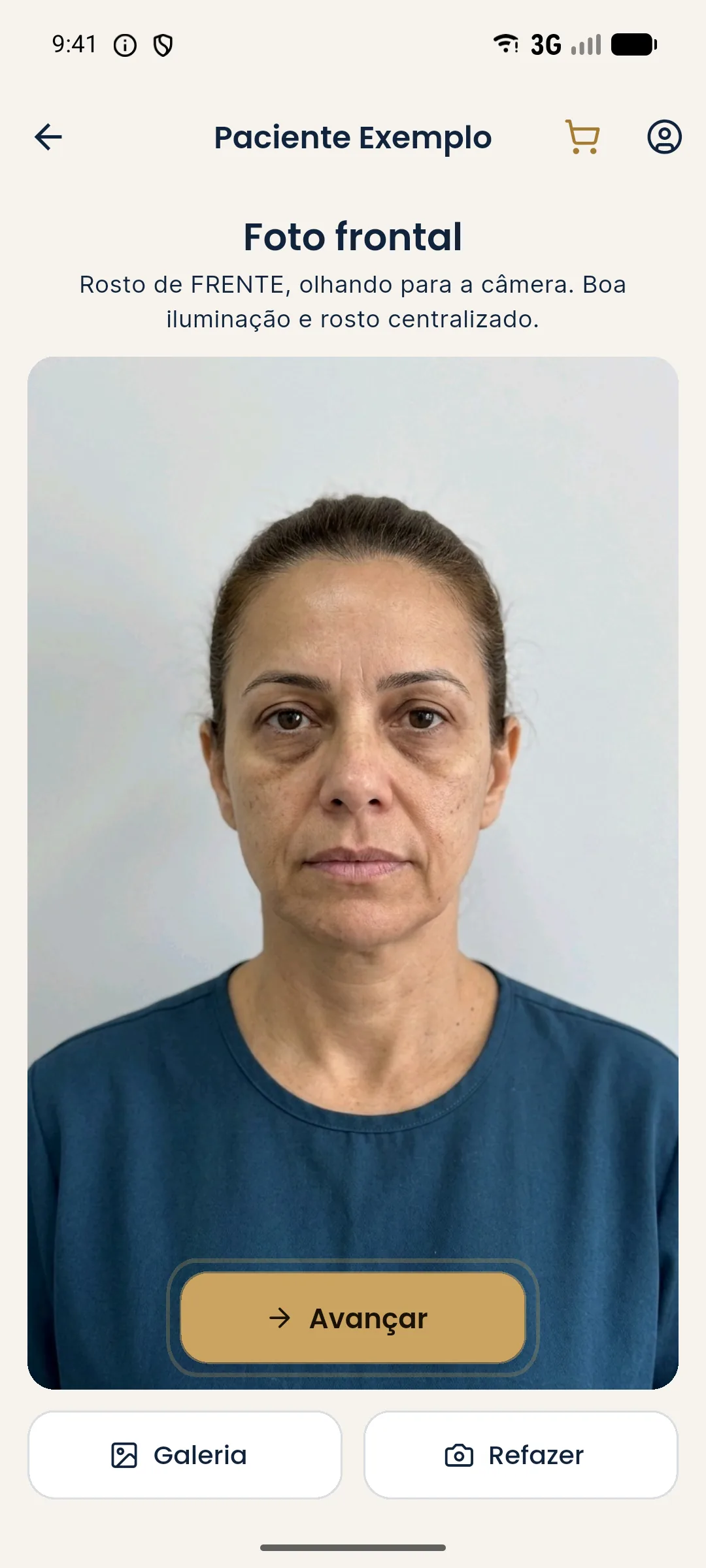
When Harmy does not detect the face, the app explains why and offers Retake. The problem is almost never the device: it is the photo. Understanding what detection looks for helps you fix it in seconds and avoid repeating it in later appointments.
What does the app check in the photo?
Before unlocking the marking step, Harmy checks three things: that there is a single face, that it is facing forward and that the lighting is sufficient. Detection runs on the device itself, and the calculated contours are not stored.
Camera or gallery?
You can take the photo on the spot or pick one from the gallery. The same criteria apply to the gallery: front-facing photo, well lit, with the face large in the frame. Photos from social media, compressed or filtered, often fail. If that is the case, ask the patient for a new photo. See the full routine in standardized front photo and standardized clinical photography.
| Photo source | Advantage | Risk of failure |
|---|---|---|
| App camera during the appointment | You control light and angle | Low, if the light is good |
| Gallery, your own photo | Already standardized | Low |
| Gallery, patient's photo | Quick | Medium, due to filters and angles |
What if it keeps failing?
Change the environment: a smooth, light wall, diffuse light from the front, the camera at eye level. Remove glasses and tie back the hair. If the patient has a feature that gets in the way (hair covering part of the face, for example), ask them to move it aside. If it still does not work, try another photo, not another app setting.
Privacy
The photo belongs to the patient, and using it requires their consent. The photo is sent to a third-party AI to generate the projection, with your acceptance in the app. See patient consent to use Harmy and photo consent and LGPD (LGPD is Brazil's data protection law).
Summary
Face not detected means a photo outside the standard. Adjust light, angle and framing, and tap Retake. More tips in bad photo in Harmy: how to improve it.
A step-by-step correction example
Hypothetical example: the app says it did not detect the face. You look at the photo and see that the patient had their back to the window, with the face in shadow. First, turn them to face the light. Second, move the hair off the forehead. Third, bring the camera closer until the face fills a good part of the frame, with forehead and chin visible. Tap Retake and shoot again. In general, this fixes it in one attempt.
If the photo comes from the gallery, the path is similar, but you do not control the light. In that case, prefer a new photo on the spot, taken with the app camera. Old photos, with filters or compressed by messaging apps, lose detail, and detection can fail even when the face seems visible.
Another point: the app looks for a single face. If someone is in the background or a portrait on the wall shows up, detection can get confused. Frame only the patient, with a plain background. For a stable standard, see standardized front photo.
Frequently asked questions
Why does Harmy say it did not detect the face?
The app checks that there is a single face, facing forward and well lit. A dark, tilted photo, one with more than one face, or one with the face cut off often fails detection.
Where is face detection done?
On the device itself. The contours are calculated on the phone and are not stored.
Do I lose a credit if the face is not detected?
Detection happens at the photo step, before marking and projection. You tap Retake and try again.
Do glasses and a beard prevent detection?
Not always, but thick glasses, hair in front of the face or a cap can get in the way. Remove whatever covers the face and retake the photo.