
Harmy on Android and iPhone: what differs and how to install
Harmy was designed for people who work standing up, phone in hand, moving between one chair and the next. That is why it is a phone app, with Android and iPhone versions that follow the same flow. This page summarizes what is the same, what changes by platform and what does not exist.
Where do I download it?
From the store of your system: Google Play on Android and the App Store on iPhone. The download buttons are at the top and at the bottom of this page. After installing, create an account or sign in with the one you already have. See creating an account.
What is the same on both systems?
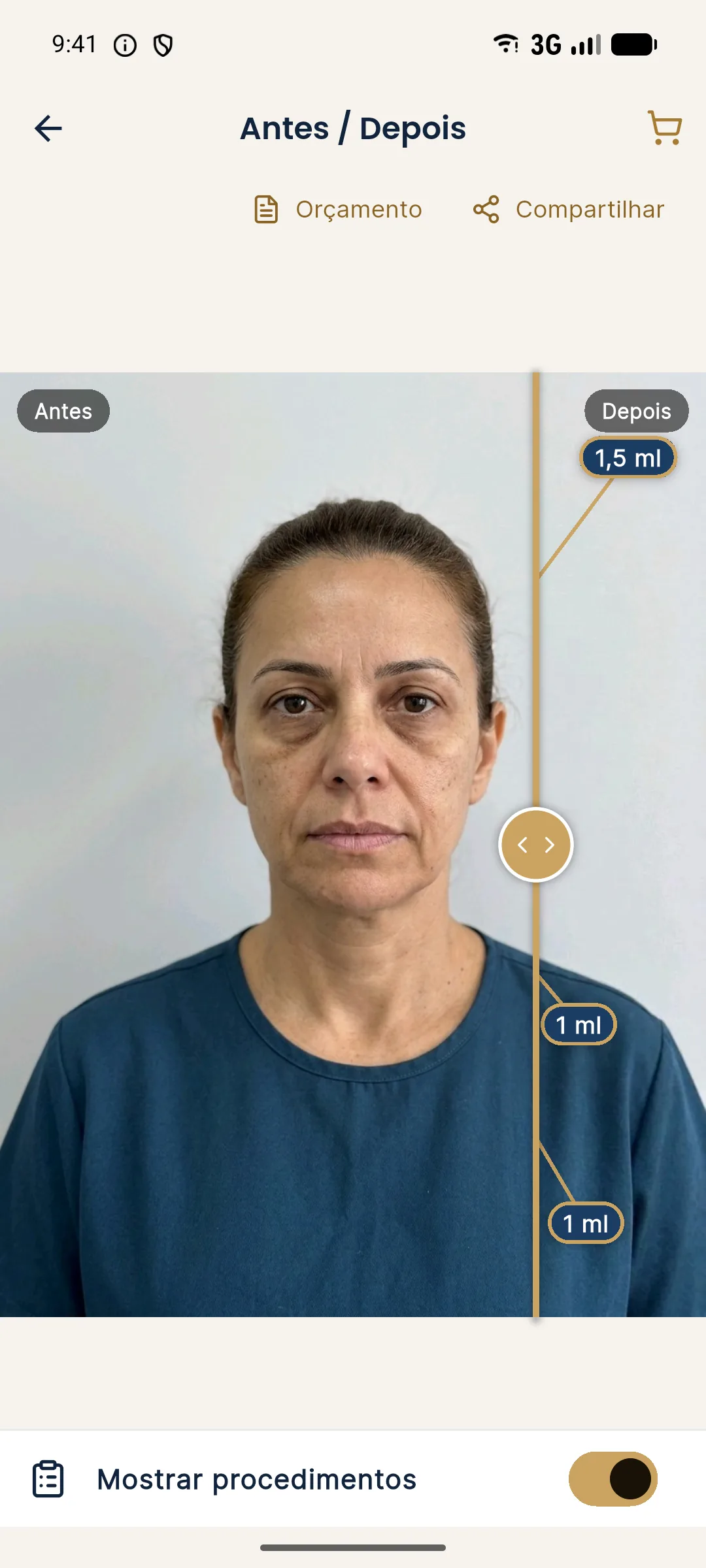
Almost everything. The flow is the same: New projection, front-facing photo, marking, Plan, Create projection and the Before / After screen, with Show procedures, Share and Quote. History, My clinic, actual result and reminders are also the same.
| Feature | Android | iPhone |
|---|---|---|
| Projection flow | Same | Same |
| History and actual result | Same | Same |
| Quote as PDF | Same | Same |
| Sign-in | Email and password, Google or Apple | Email and password, Google or Apple |
| Buying credits in the app | Through Google Play | Through the App Store |
What changes when topping up?
In the app, you top up through the phone's store: Google Play on Android and the App Store on iPhone, in packages of R$ 20, R$ 50 and R$ 100. You can also buy credits on the Harmy website, in the credits area, and the balance is the same in both places. For the step by step, see credits and top-up.
Portrait or landscape
Harmy works in both positions. To photograph the patient, keep the phone upright; to show the slider during a conversation at the desk, landscape gives the image more room. Presentation mode opens a full screen with only the slider, so you can turn the phone toward the patient, and the magnifier enlarges the treated area with before and after side by side.
What does not exist
Step by step to get started
- Install the app from Google Play or the App Store.
- Create the account (email and password with a verification code, Google or Apple).
- Use the welcome projection to learn the flow, including with the sample patient.
- Fill in My clinic so your brand appears on the images and in the PDF.
- Top up your balance when you need to.
Tips
- Update the app through the store to get the improvements.
- Use a good camera and clean the lens. The photo is the basis of the projection.
- Test sharing with yourself before sending it to your first patient.
- For your first projection, follow first projection in 5 minutes.
Day-to-day usage tips
To keep appointments flowing, leave the app open on the home screen before the patient comes in, with the balance already checked. In clinics with more than one person, decide who uses the work phone and keep the screen lock on, since History contains patient photos. If you are going to present the slider at the desk, use presentation mode and the magnifier, which show before and after without cluttering the screen.
When you change devices, just sign in with the same account. The balance, projections and My clinic data stay in the account, and the draft of a marking in progress stays on the device where it was started.
Frequently asked questions
Does Harmy work on Android and iPhone?
Yes. The app is available for Android and iPhone, with the same projection, History, quote and My clinic flow.
Is there a Harmy version for iPad or for computers?
No. The app is for phones. There is no web version of the app and no iPad-optimized version.
Can I use the same account on both systems?
Yes. Signing in with email and password, Google or Apple gives you the same History and the same balance.
Does Harmy work with the phone turned sideways?
Yes. The app works in portrait and landscape, and the layout adapts to the position of the device.