
How to Organize Projections by Patient in Harmy
Quick facts
- Topic
- Naming, dating and archiving projections by patient
- Problem
- Several versions for the same patient turn into a mess after a few months
- Principle
- A naming pattern and one note per version solve most of it
- Caution
- Facial photos are sensitive data and need care in access and storage
Two months after generating the third projection for the same patient, you open the history and find three similar images, two nearly identical names and no note on what each one meant. Which one did she see? Which one had the cheekbone at 2 ml? Which one was just a test? Without organization, the history becomes a dead archive, and the projection, which should support the conversation, gets in the way.
This page proposes a simple way to organize projections by patient: how to name, how to date, what to note, how to archive, how to handle versions and how to protect the photos. For the record of the plan itself, see plan journal: progress notes by session.
How does the Harmy history organize sessions?
In Harmy, each new projection starts from "New projection" and the patient's name. The history groups sessions by patient, and search is by name. That means the name is the organizing key: if it changes from one session to the next, the app treats it as a different patient.
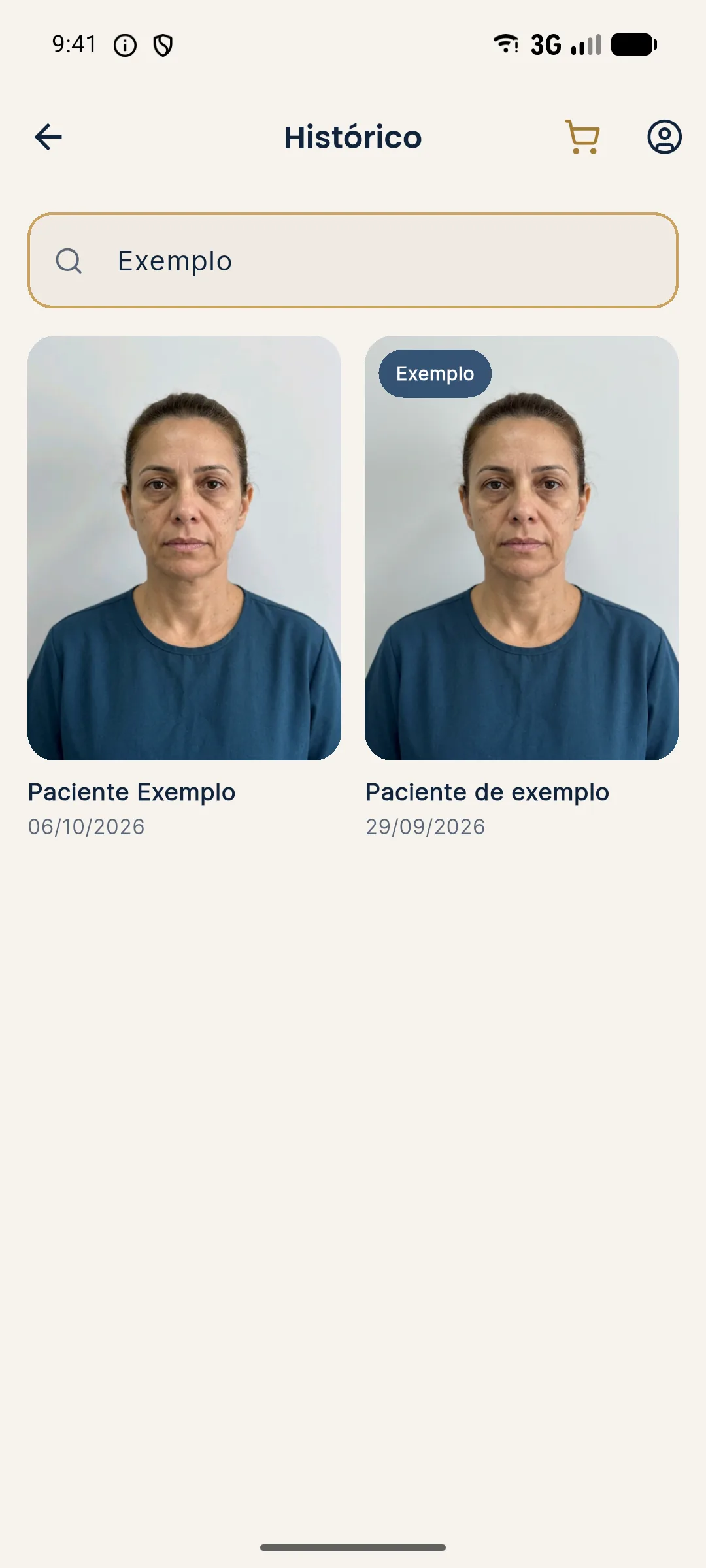
That is why the first rule is name consistency. Pick a pattern and always use it the same way, preferably the full name as it appears in the clinic's registration. Avoid nicknames, abbreviations and inversions such as "Silva, Ana" and "Ana Silva". If you have patients with the same name, add a discreet identifier that also appears in your patient record.
What naming pattern works?
A simple pattern solves most problems. The idea is that the person's name is always the same, and the information about the version is kept in your note, not in the name.
| Element | Suggested pattern | Reason |
|---|---|---|
| Patient name | Full name, always identical | The history groups by name |
| Same-name patients | Discreet identifier, same as in the patient record | Avoids mixing photos of different people |
| Version | Your note: 1st, 2nd, with date | The date stays with the record and the name stays stable |
| Purpose | Note: plan, test, follow-up | Know what was shown to the patient |
| Internal test | Sample patient | Keeps real patients' history clean |
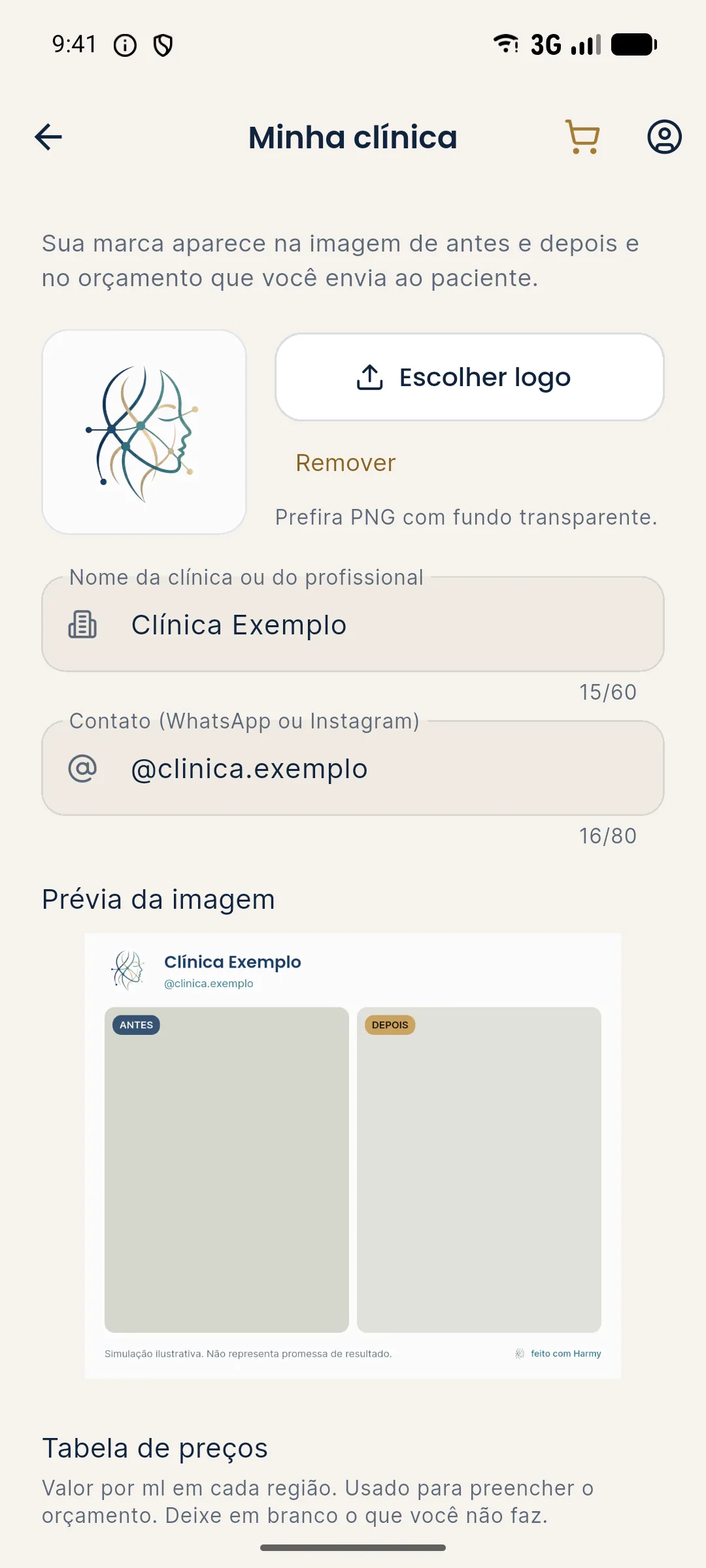
The app has a sample patient (a fictional person) for testing without a real patient. Use it to train the team and to try out intensities and shortcuts, instead of generating test projections with photos of real people. This saves credits and keeps the history clean.
What should you note for each projection?
The image alone does not say what it represents. In your patient record or a free-text field, note the details that give it meaning. Ideally the record fits in a few lines.
These details prevent the problem of trying to remember, months later, which projection was the "official" one. They also support the ethics of simulation: if the patient questions what she saw, you can show what was presented. See ethics of result simulation and keeping simulation versions for each follow-up.
How do you handle several versions for the same patient?
Generating more than one projection is normal: a Subtle scenario, a Moderate one, a version with and without the jawline. The cost is R$ 3.99 per projection, with no subscription, which encourages generating with purpose. To avoid confusion:
- Generate the main version first and note its purpose.
- Generate alternative scenarios only when the conversation calls for it.
- Mark in your note which version was the plan's reference.
- Mentally discard test versions and do not show them to the patient.
- At each follow-up, start from a new photo and create a new session instead of editing the old one.
The last point matters: the follow-up projection starts from today's photo and does not replace the earlier one. The history shows the progression. For multiple scenarios, see simulation with more than one scenario.
How do you archive and protect the photos?
The app's history stores photos and projections, and that involves sensitive personal data. A few precautions apply to the whole clinic:
- Protect the device with a password or biometrics and avoid leaving it unlocked.
- Limit who uses the account and do not share credentials.
- Ask for specific consent to store and use the images.
- Set a retention period in line with your professional board's rules and the LGPD.
- Never use a patient's photo or projection in advertising without specific consent and without following the rules.
The projection must never be presented as a result. For the advertising rules, see what you can advertise: CFO and CONAR. Facial contours are calculated on the device and are not stored, but the photo sent to generate the image goes through a third-party AI, with the professional's acceptance in the app.
Every decision on the plan and on data retention belongs to the qualified professional, in line with the rules of their professional board and the LGPD. The simulation is illustrative.
Frequently asked questions
How does Harmy organize projections?
The history stores sessions by patient, with search by name. Each projection is tied to the name entered when it was created, so consistent naming matters.
What name should I use for the patient?
Always use the same pattern, for example full first and last name. Variations such as a nickname and a full name create duplicate patients in the history.
Should I keep every projection version?
Keep the ones that informed the decision and the ones shown to the patient, with a note on what each represents. Discarding the rest is your choice.
Can I use the patient's projection in advertising?
Not as if it were a result, and never without specific consent. Follow your professional board's rules and the LGPD, and see the page on what you can advertise.
Harmy images are illustrative simulations generated by AI from the patient's photo to support the conversation between practitioner and patient. They are not a promise of results. Indication, technique, product and volume are solely the decision of the licensed practitioner. This content is for information only and does not replace a clinical assessment.