
Showing the simulation to the patient on a phone or tablet

Quick facts
- Topic
- How size, brightness and the way of showing change the perception of the simulation
- Central question
- Does the screen favor an honest reading or exaggerate the effect
- App feature
- Presentation mode, magnifier on the treated area and patient link
- Caution
- A small screen, high brightness and zoom can exaggerate or hide the effect
The same image changes meaning depending on the screen it is viewed on. On a small phone, in the bright light of the office, with brightness at maximum and exaggerated zoom, a subtle difference can look enormous. On a larger screen, in a dark room, the same difference can disappear. The patient does not know this, and you are the one leading the presentation. The way you show it is part of the honesty of the simulation.
This page covers how to present the simulation on a phone or a larger screen without distorting perception: what each device does to the image, how to adjust brightness, light and position, which Harmy features help and which mistakes to avoid. For the general ethics, read ethics of result simulation.
What changes when the screen changes?
Size, brightness, resolution, viewing angle and ambient light alter the reading. A small image concentrates the eye on the difference between the two halves of the slider, while a large screen lets you see the face as a whole and better perceive harmony.
| Factor | Effect on perception | Caution |
|---|---|---|
| Small screen | Focus on detail, difference looks bigger | Show the whole face first |
| Larger screen | More context, difference looks subtler | Give the patient time to look |
| High brightness | More contrast, emphasized relief | Use moderate, equal brightness |
| Strong ambient light | Glare and loss of contrast | Avoid direct light on the screen |
| Zoom | Enlarges the area, exaggerates small differences | Use it with an explanation |
| Viewing angle | Some panels distort color and brightness | Hold the screen facing the patient |
In any case, the image is an illustration generated from a frontal photo. What the patient sees is not what they will get, and the screen can widen that distance. See why the simulation should be subtle.
How do you prepare the room and the screen?
Small adjustments make a difference and cost nothing. Always do them the same way, so the presentation is comparable across patients.
If the patient wants to look on their own, hand them the phone in presentation mode. If you prefer a larger screen, the ideal is to mirror your device on a monitor, which depends on the office equipment. Harmy has no web version or tablet-optimized version, so the presentation always goes through the phone, directly or mirrored.
How does Harmy help you present?
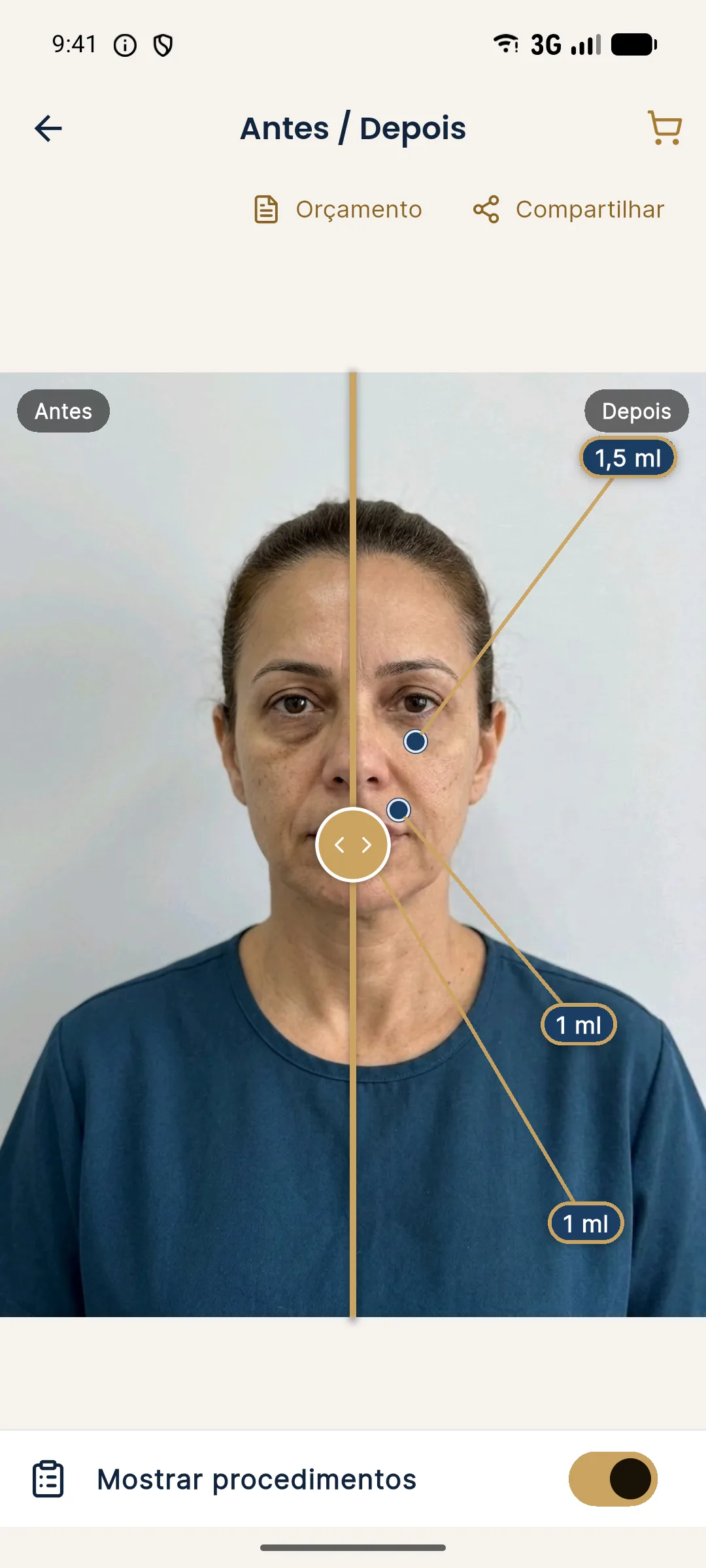
The app has features designed for this conversation. Presentation mode opens a full screen with only the Before and After slider, so you can turn the phone toward the patient without exposing the rest. The magnifier enlarges only the treated area, showing before and after side by side. And the patient link, instead of an image, opens the slider on their phone with the clinic's logo and contact details, on a harmy.com.br/v/ page.
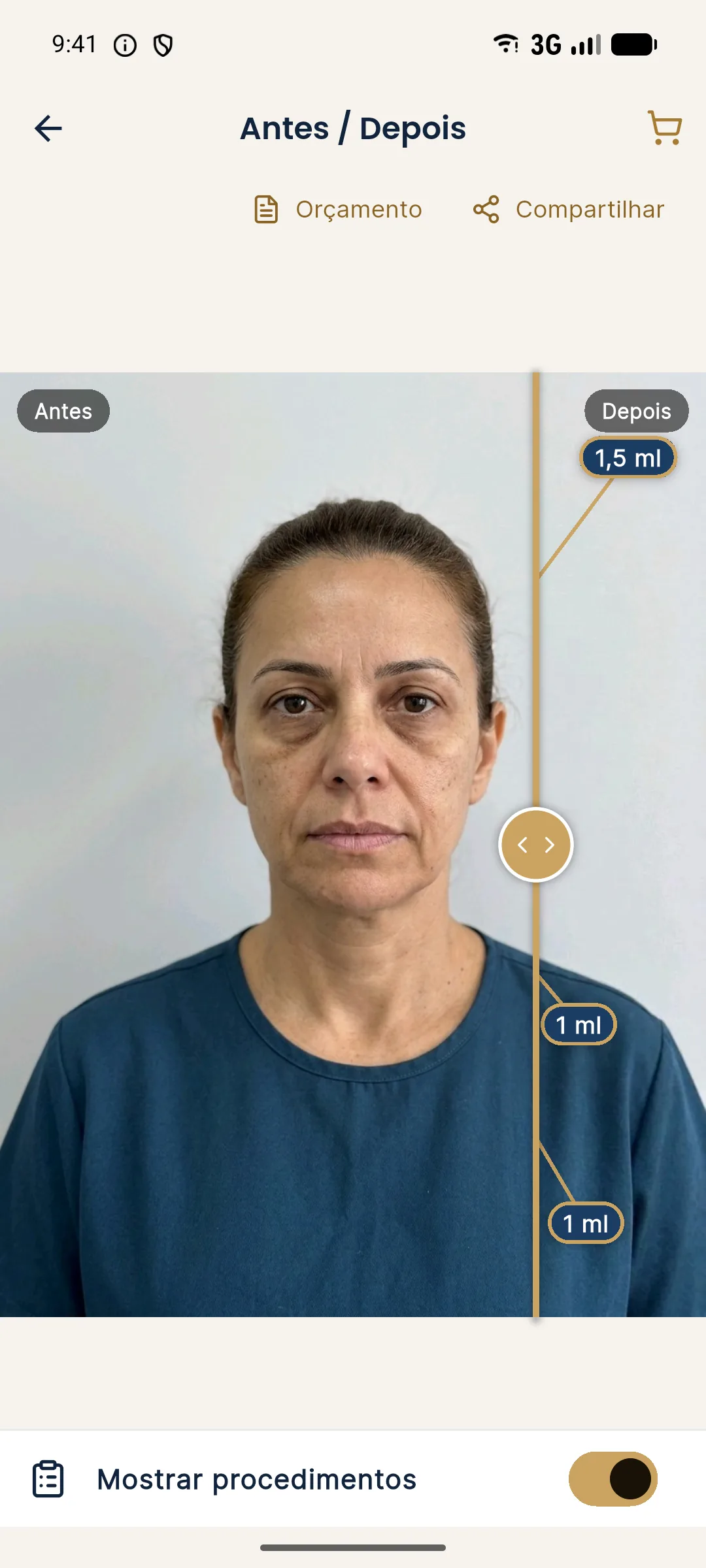
For using the magnifier in the conversation, see presenting the treated area with the magnifier. If you choose to send the link to the patient, they will see the simulation on their own phone, under conditions you do not control: their brightness, environment and screen size. Agree with them that this is an illustration and ask them to look at the whole face.
Which perception mistakes should you avoid?
Some mistakes repeat. Recognizing them helps keep the conversation honest.
- Contrast effect: seeing the two images in quick succession makes the difference look bigger than when seen in isolation.
- Zoom effect: enlarging too much creates details the real face does not have.
- Mirror comparison effect: the patient compares the image with the mirror, which has its own light and angle.
- Focus effect: the eye goes straight to the marked area and forgets the whole.
- Rush effect: with no time to look, the patient accepts what seems to be the result.
The Harmy projection changes only what was marked and does not alter makeup, skin, expression, background, hair or lighting. That is why the changes are subtle and realistic. If the patient finds it "not much", that is consistent with the proposal of honesty. To talk to them in that case, see explaining that a simulation is not a guarantee.
What should you say to the patient during the presentation?
What you say matters as much as the screen. A few short phrases, repeated every time, reduce the risk of misunderstanding.
Every planning decision belongs to the qualified professional, according to the rules of their professional board, and the simulation is always illustrative.
How do you record what was shown?
After the presentation, note in the patient record what the patient saw: which projection, with which areas, ml and intensity, in what format (phone screen, shared image or link) and with what explanation. If they received the image or the link, record that too. This simple step protects you if a disagreement later arises about what was promised, and helps the next professional understand the patient's expectation. The Harmy share image already comes out with the clinic header and the simulation notice, which reinforces its illustrative nature.
Also avoid sending the simulation through messaging apps without context. Images circulate, get cropped and lose the notice. Prefer the patient link, which keeps the image inside a page with the clinic's identification. See keeping simulation versions per follow-up.
Frequently asked questions
Can I show the Harmy simulation on a larger screen?
Harmy is a phone app, for Android and iPhone. To show it on a larger screen, use the patient link, which opens the slider on their phone, or mirror your device's screen, depending on the equipment.
Does screen brightness change how the simulation is perceived?
Yes. High brightness boosts contrast and can make the difference look bigger. Use a moderate brightness, the same for both images.
What is Harmy's presentation mode?
It is a full screen with only the Before and After slider, so you can turn the phone toward the patient without showing the rest of the app.
How do I keep the patient from fixating on the magnifier detail?
Show the whole face on the slider first and only then the magnifier on the treated area, explaining that this is an illustration.
Harmy images are illustrative simulations generated by AI from the patient's photo to support the conversation between practitioner and patient. They are not a promise of results. Indication, technique, product and volume are solely the decision of the licensed practitioner. This content is for information only and does not replace a clinical assessment.